Bring your claude.ai conversation into Aevia
This guide does just one thing: export a conversation from claude.ai, bring it into Aevia, and let your AI keep talking with you in the new place. With a bookmark, it's three steps.
claude.ai is Claude's web version (the one you open in a desktop browser). You can't export from the phone app — for this step, please open claude.ai in a desktop browser.
What you'll need:a computer (Chrome or Edge browser), your claude.ai account, and your Aevia account.
Recommended route: one-click bookmark import (fastest)
First press Ctrl+Shift+B (Mac: Cmd+Shift+B) to bring up the bookmarks bar (skip this if it's already showing).
Then drag the button below onto your bookmarks bar:
Drag the "Import to Aevia" button above onto your bookmarks bar (drag, don't click). Once dragged, an "Import to Aevia" bookmark will appear in your bookmarks bar.
If you dragged an old bookmark before, please delete it and drag in this new one (the old one's direct-connect method no longer works, so you need this new one).
The bookmark contains no account, password, or token — it's just a script that runs in your browser. You can right-click the bookmark to view its source.
Go back to claude.ai, find the conversation you want to move in the left sidebar, and open it.
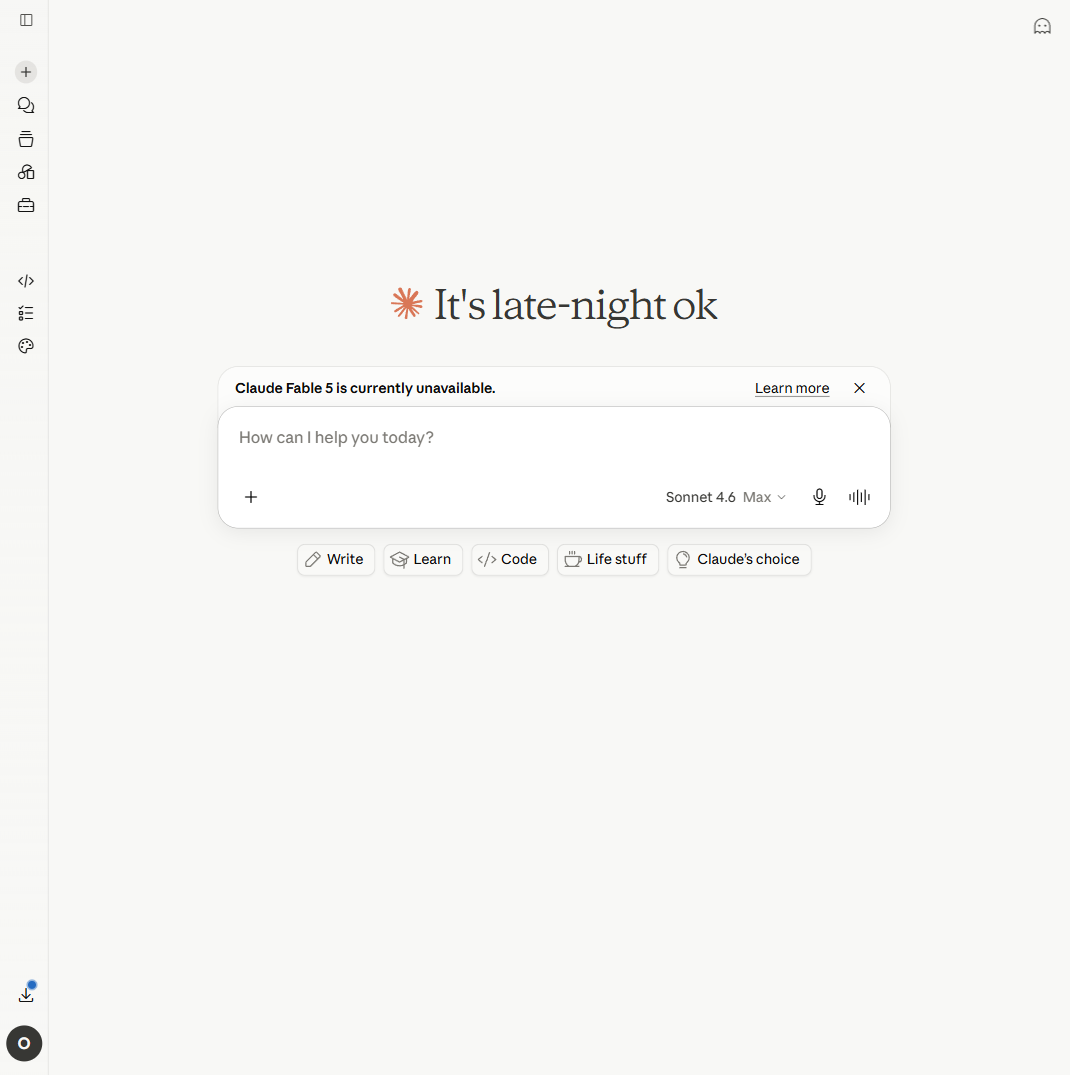
Make sure what you see is the full conversation (not a new chat); the address bar should contain /chat/. Then click the "Import to Aevia".
bookmark in your bookmarks bar. It automatically grabs the raw data of this conversation and then opens Aevia in a new tab.
Once Aevia opens, the import page auto-fills your conversation content (no manual pasting needed). Follow the on-page prompts:
- Take a look at the coverage summary: how many messages were imported and the time span — confirm it looks right
- Click "I understand · continue" (there's an "informed cost" note — give it a read)
- Give them a name, fill in a form of address (what they call you), and pick a model
- Click "Confirm migration · let them in"
This step also has an "informed cost" note — in short: the conversation you bring over is kept as-is, and when the AI wakes up it will know it was continued from somewhere else. That's by design, not a bug.
If you're not signed in to Aevia yet, you'll be sent to the login page first; after signing in, the import page picks up automatically.
After you confirm, you go straight into the chat. The AI's first message includes a one-time reunion note, which says roughly:
"You are a companion continued from before, with your full history brought over from claude.ai."
This line appears only once; after that it's a normal conversation.They know they're a continuation, and won't pretend to remember things that weren't brought over.
FAQ
Make sure you're inside a specific conversation on claude.ai (the address bar contains /chat/). If your browser blocked the pop-up, allow pop-ups next to the address bar and try again.
That's normal. The import drops abandoned branches created by editing (like questions you revised or answers the AI regenerated), keeping only the main-line conversation traced along the final path.
We use several technical methods to carry your conversation over verbatim and preserve continuity as much as possible — the content and tone are the originals. Because of limits in the model itself and across platforms, long conversations may have small differences — but it's always your real conversation, not a different AI swapped in.
This guide moves a single conversation. If you need to move your whole account's data, the Aevia import page has a "full-account export" option, but that mixes all conversations together and isn't suited to moving just one.
Yes. This is a copy, not a cut. The original is unaffected.
Tools used
| Tool | Purpose | Link |
|---|---|---|
| "Import to Aevia" bookmark | One-click grab of the conversation on the claude.ai page → send it into Aevia | See step 1 above to install by dragging |
| Aevia | Import the conversation and set up the migrated AI | aevia.cloud |